
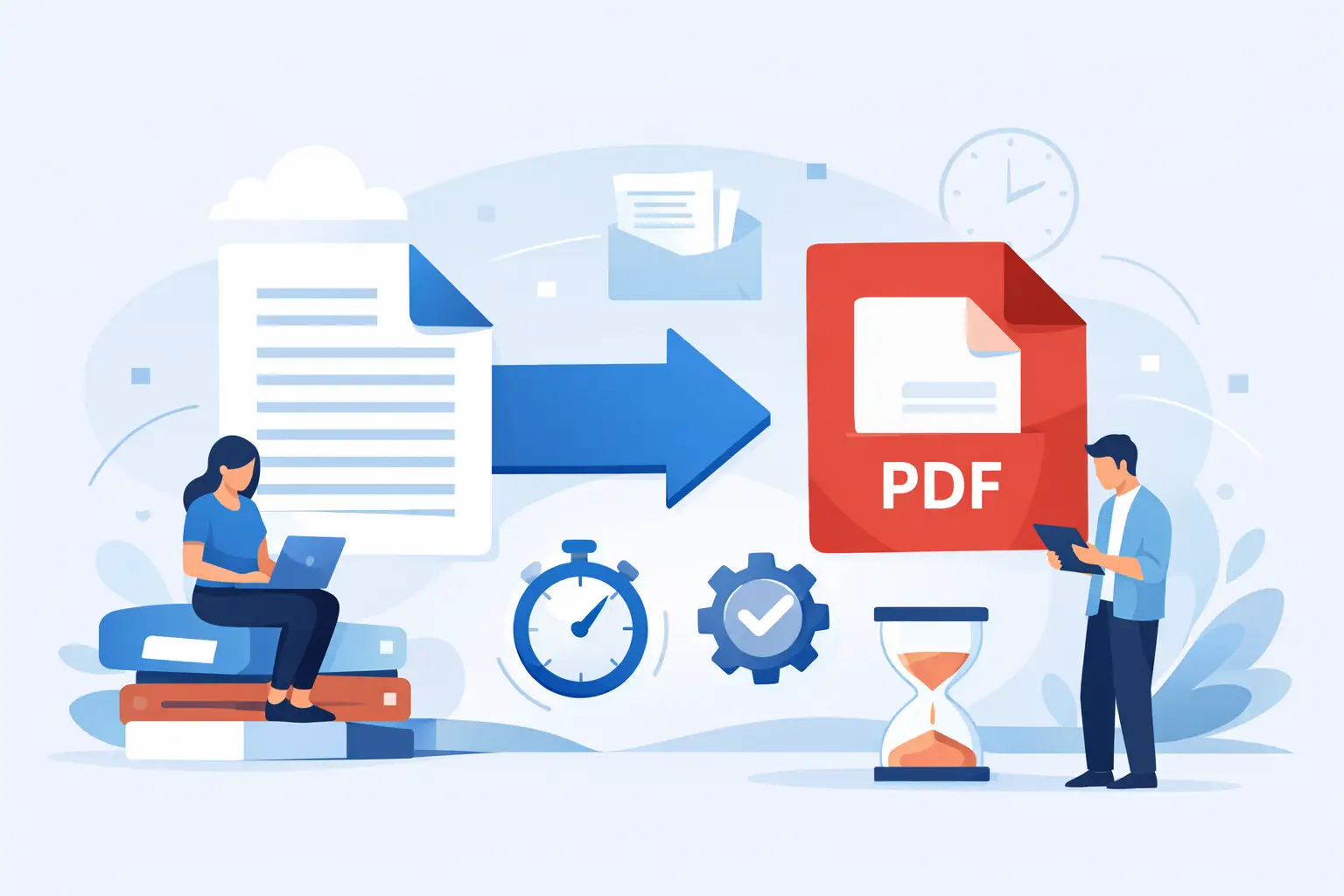
You usually notice the need for a word to pdf converter at the worst possible moment - right before sending a contract, submitting onboarding paperwork, or sharing a file that suddenly looks different on someone else’s screen. A document that seemed finished in Word can shift fonts, break page spacing, or move signature lines once it lands on another device. Converting it to PDF fixes that, but only if the tool preserves the layout, works quickly, and handles files securely.
Why a word to pdf converter matters
Word files are built for editing. PDFs are built for sharing. That difference sounds simple, but it changes how documents behave in real workflows.
If you are sending a W-9 to a client, an offer letter to a new hire, or a pricing sheet to a customer, the goal is not ongoing collaboration. The goal is consistency. You want the recipient to open the file and see the exact document you intended, with no formatting surprises and no missing elements. A PDF gives you that fixed format.
That is why a word to pdf converter is not just a convenience feature. It is a practical step that reduces errors, protects presentation, and makes documents easier to use across devices. For professionals handling forms, agreements, tax paperwork, reports, or internal records, that reliability matters more than people think.
What a good word to pdf converter should actually do
Not every converter delivers the same result. Some are fast but flatten formatting. Others keep the design intact but add friction with downloads, account walls, or confusing steps. The best option depends on what kind of document you are converting and how often you do it.
For most users, the baseline requirement is formatting accuracy. Headers, margins, tables, images, bullet alignment, and page breaks should carry over cleanly from DOC or DOCX to PDF. That is especially important for resumes, client-facing documents, invoices, and compliance forms where presentation is part of the job.
Speed matters too. If a tool takes several minutes to process a simple file, it becomes a bottleneck. Browser-based conversion is often the better fit for busy teams and solo professionals because it removes installation and lets you work from any device.
Security is the other major factor. A lot of Word files contain sensitive information - Social Security numbers, addresses, payment details, employee data, or tax information. If you are uploading documents online, you need clear security standards, encrypted transfers, and file handling practices that do not leave documents sitting around longer than necessary.
When Word should become PDF
Some files should stay in Word because they are still being drafted. Others should move to PDF as soon as they are ready to leave your hands.
The obvious cases are contracts, proposals, onboarding packets, signed letters, policies, and official forms. In these situations, you want to preserve the final version and reduce the chance of accidental edits. PDFs also work better when documents are printed, archived, or attached to portals that expect a fixed format.
There are also less obvious cases. A resume often looks cleaner as a PDF because formatting stays intact for recruiters. A monthly report becomes easier to share with leadership when everyone sees the same layout. Even a simple invoice benefits from PDF format because it appears more final and professional.
If your workflow involves sending documents outside your organization, a word to pdf converter is usually part of quality control, not just file conversion.
Word to PDF converter for business workflows
For small businesses and operations teams, file conversion tends to happen in clusters rather than one file at a time. A contractor might need to convert a proposal, scope of work, and invoice in the same afternoon. An HR coordinator may prepare offer letters, policy documents, and an I-9 packet for onboarding. A finance team member may convert a payment summary before sending it for approval.
In those moments, the value of the tool is not just the conversion itself. It is how quickly it helps you move to the next step.
A useful workflow often looks like this: convert the Word file to PDF, review the layout, compress if the file is too large, add a signature field if needed, then send or store it. That is why many users prefer one platform that handles more than a single task. Jumping between separate tools adds time, and it also creates more chances for version mistakes.
For recurring document work, that time adds up quickly.
Common conversion issues and how to avoid them
Most Word-to-PDF problems come down to formatting, fonts, or document structure. If the original file is inconsistent, the PDF may expose those inconsistencies more clearly.
Tables are a common trouble spot. In Word, a table may look aligned on your screen but shift slightly when converted if spacing was manually adjusted. Text boxes can also behave unpredictably, especially in older DOC files. The cleaner the original document, the cleaner the PDF result.
Fonts are another issue. If a document relies on uncommon fonts, substitutions can affect spacing and line breaks. For client-facing or compliance-heavy documents, it helps to use standard fonts and review the final PDF before sharing.
Images deserve a quick check too. If they were low resolution in Word, converting them will not improve them. If anything, that softness becomes more noticeable in PDF format. The same goes for scanned pages inserted into a Word file.
None of this means conversion is risky. It just means that for high-stakes documents, a 20-second review after conversion is time well spent.
Browser-based conversion vs desktop software
Desktop software still makes sense for some organizations, especially those with locked-down internal systems or specialized document needs. But for most day-to-day use, browser-based tools are the better fit.
They are faster to access, easier to use across devices, and simpler for teams that do not want another installation request going through IT. If you are working from home, traveling, or switching between personal and work devices, the ability to convert files instantly in a browser is a real advantage.
The trade-off is trust. With a browser tool, users need confidence that documents are processed securely. That means encryption in transit, clear privacy standards, and automatic file deletion policies. When those protections are in place, online conversion becomes a practical option for both one-off documents and repeat workflows.
This is where an all-in-one platform can make more sense than a standalone converter. If you already need to edit PDFs, fill forms, combine files, or protect documents after conversion, keeping those steps in one secure environment is more efficient than piecing the process together.
What to look for before choosing a converter
A good tool should feel simple on the surface and dependable underneath. That means the file uploads quickly, the conversion finishes without guesswork, and the PDF looks right the first time.
Beyond that, there are a few questions worth asking. Does it support both DOC and DOCX? Can you use it without installing software? Will it preserve tables, images, and page breaks? Does it work well on mobile as well as desktop? If the document contains private data, are transfers protected with bank-grade encryption and are files deleted automatically after processing?
If your work involves forms and operational paperwork, it also helps if the same platform lets you keep going after the conversion. PDF Awesome is built for exactly that kind of workflow, with browser-based tools for converting, editing, organizing, securing, and filling documents in one place.
The best word to pdf converter is the one that removes friction
People rarely search for a converter because they are curious about file formats. They search because they need to send something now, and they need it to work. That urgency is why speed, accuracy, and security matter more than long feature lists.
A good word to pdf converter should help you finish the job without introducing new problems. It should preserve what you created, keep sensitive files protected, and fit naturally into the rest of your document process. Whether you are sending a single resume or managing a stack of onboarding forms, the right tool saves more than a few clicks - it protects time, presentation, and trust.
If your documents matter, conversion should feel like the easy part.
