
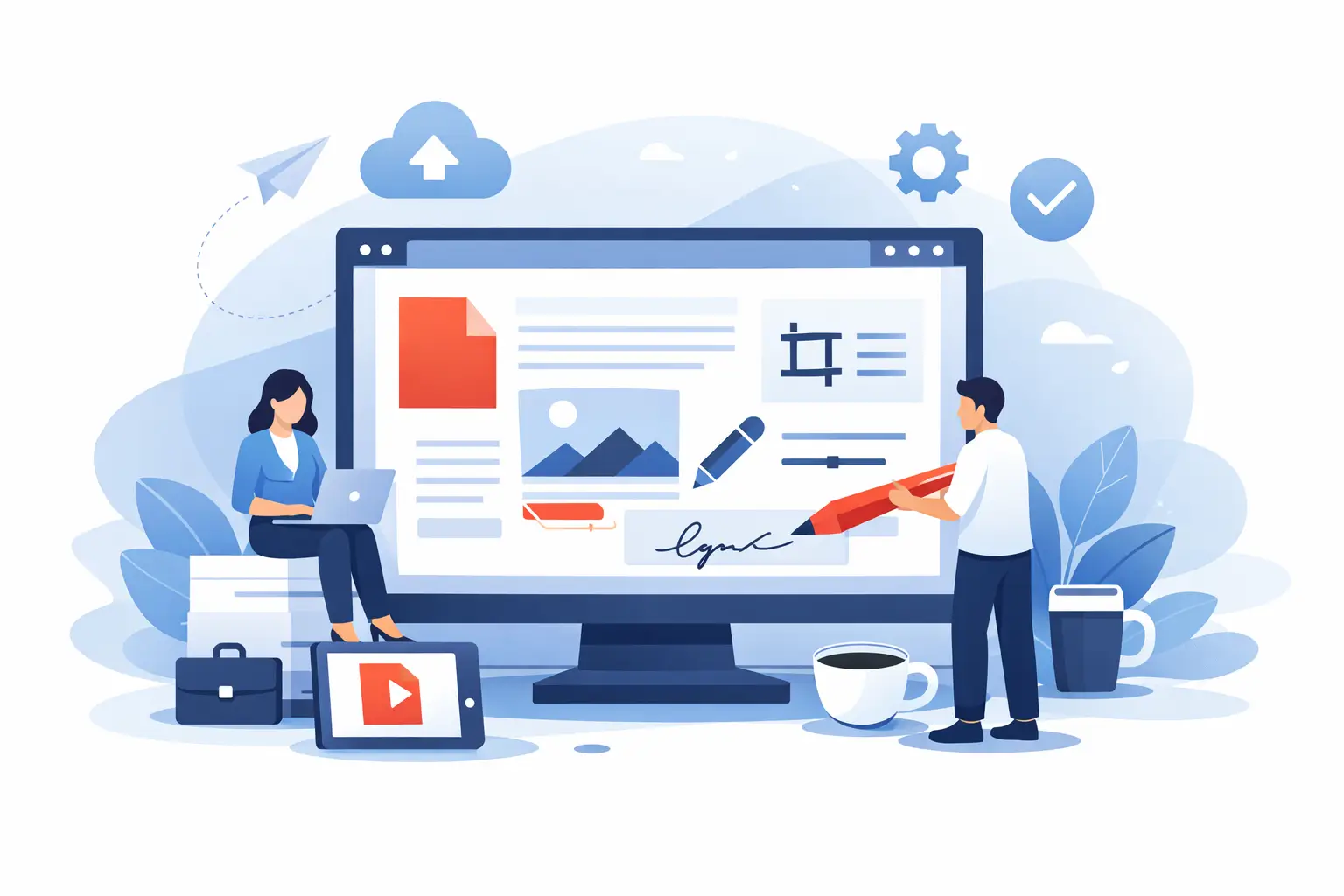
A PDF should not be the reason your work slows down. But that is exactly what happens when a simple task - fixing a typo, filling a form, combining files, or converting a document - turns into a search for the right app, the right version, or the right device. This online pdf editing guide is built for people who need documents handled now, without downloads, delays, or extra steps.
For most professionals, the real issue is not editing one file. It is managing a steady stream of documents that need different actions at different times. A contract needs a signature. A W-9 needs to be filled out. A scanned file needs text extracted. A report needs to be compressed before sending. If your workflow depends on separate tools for each step, small tasks start stacking into wasted time.
What an online PDF editing guide should actually help you do
A useful guide should not treat PDF editing as one single action. In practice, people need a browser-based workflow that covers five common jobs: edit content, convert file types, organize pages, secure sensitive information, and complete forms accurately.
That matters because PDFs show up at the center of real work. HR teams handle I-9s and onboarding packets. Contractors send invoices and tax forms. Small businesses manage agreements, receipts, and reports. Administrative staff often spend more time chasing compatible formats than finishing the task itself. The best online approach reduces that friction by keeping the process in one place.
Start with the task, not the tool
The fastest way to handle PDFs online is to identify the end result first. If you need to change wording inside a file, use an editor. If you need a Word file turned into a PDF, use conversion. If a packet has too many pages, reorganize it. If the file contains personal or financial information, apply protection before sharing it.
This sounds obvious, but many users lose time by opening the wrong tool first. They try to edit a scanned document before running OCR, or they merge files before checking page order. A cleaner workflow starts with one question: what should this document look like when I am done?
Edit when content needs to change
Online editing works best for direct updates like correcting text, adding comments, inserting images, highlighting sections, or placing signatures and initials. This is usually enough for agreements, internal reviews, approval cycles, and basic client-facing documents.
There is one trade-off to keep in mind. Not every PDF behaves the same way. A digitally created PDF is usually easier to edit than a scanned image-based file. If your file came from a scanner, you may need text recognition before the content becomes editable. That is not a flaw in online tools - it is simply the nature of how the original file was created.
Convert when the format is the problem
A large share of document delays come from format mismatches, not content issues. Someone sends a JPG instead of a PDF. A spreadsheet needs to be turned into a shareable report. A PDF needs to become an editable Word file. In those cases, conversion is the real solution.
The key is accuracy. Fast conversion is useful only if the layout holds up. For business documents, tables, spacing, and form fields matter. If the converted file needs heavy cleanup afterward, you did not really save time. Good online conversion should preserve structure well enough that you can move to the next step immediately.
The practical online PDF editing guide for daily workflows
If you handle documents regularly, your workflow should feel repeatable. Not every file needs the full process, but most tasks fit a simple pattern: upload, choose the action, review the output, and save or share the final version.
For example, an HR manager might open an employment packet, add notes, reorder pages, and send it for completion. A freelancer might convert an estimate to PDF, sign it, and compress it before emailing. A finance user might pull text from a scanned receipt, merge support documents, and protect the final file with restricted access. Different jobs, same logic.
Organize before you send
Page order issues create more confusion than most teams expect. Missing pages, duplicate pages, upside-down scans, or unrelated attachments can make a polished document look careless. Organizing the file before it leaves your hands is one of the fastest quality checks you can make.
That includes merging related files into one packet, splitting large documents into smaller sections, rotating pages that scanned incorrectly, and removing pages that should not be shared. These are quick actions online, but they have a big effect on how professional the final document feels.
Use forms as part of the workflow, not a separate project
For many users, the real value of online PDF work is not just editing files. It is being able to access and complete official forms without starting from scratch. Tax forms, employment documents, and compliance paperwork often create bottlenecks because people are looking in one place for the form, another for the editor, and a third for signature tools.
Keeping forms and PDF tools together makes the workflow faster and more accurate. If you regularly work with W-9s, W-4s, I-9s, or 1099-NEC forms, the time savings add up quickly when the document is already available, fillable, and ready for the next action.
Security is not optional in an online PDF editing guide
Convenience matters, but not at the expense of trust. Many PDFs contain tax details, payroll records, contracts, IDs, or customer information. If you handle sensitive files online, security standards need to be part of the decision, not an afterthought.
Look for bank-grade encryption, secure file transfer, and clear data handling practices. GDPR compliance is another strong signal that the platform takes user data seriously. Auto-deleted files are especially useful for reducing long-term exposure, since they help ensure documents do not sit on servers longer than needed.
There is also a practical side to security. Protected documents help prevent accidental edits, unauthorized sharing, and version confusion. In many workplaces, a secure workflow is not just about compliance. It is about reducing risk from ordinary mistakes.
Where online PDF editing works best - and where it depends
Browser-based editing is ideal when speed, access, and convenience matter most. It works well for quick revisions, standard business paperwork, form completion, routine conversion, and multi-device access. If you need to finish a document from a laptop at work, a home computer, or a phone while traveling, online tools are often the most efficient option.
It depends, though, on the complexity of the file. Highly designed layouts, unusual fonts, or advanced publishing tasks may still need desktop software. That does not apply to most everyday business documents. For the majority of contracts, onboarding files, invoices, reports, and tax forms, online editing is more than enough.
This is why many teams are moving away from fragmented document workflows. When one platform covers edit, convert, organize, protect, and fill forms, the process becomes simpler to repeat. PDF Awesome fits that model well because it brings those everyday tasks together in one browser-based workspace, with instant processing and security standards built for professional use.
How to choose the right online PDF setup
If you are comparing options, focus less on feature volume and more on task coverage. Can you edit and annotate? Can you convert common file types? Can you merge, split, and compress without switching tools? Can you access official forms when you need them? Can you trust the platform with sensitive files?
Those questions get you closer to a useful answer than a long features list. Most users do not need the most complex document system on the market. They need one that is fast, accurate, secure, and easy to use repeatedly.
A good online PDF workflow should feel like removing friction from work you already have to do. If a tool helps you finish forms faster, fix files without downloading software, and keep sensitive documents protected, it is doing its job. The best setup is the one that lets you stop thinking about the PDF and get back to the work behind it.
