
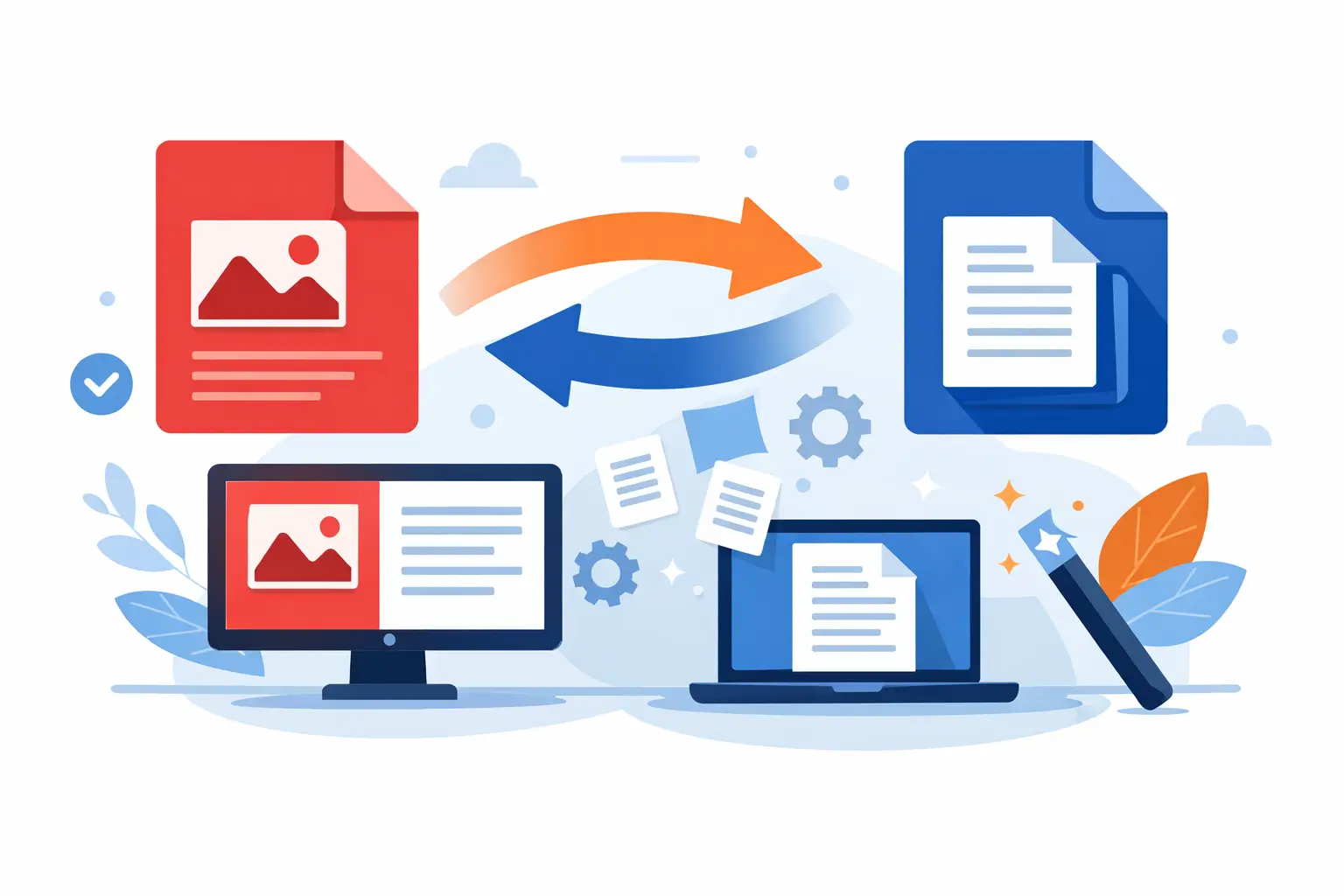
You usually find out you need a Word file at the worst possible moment - when a contract needs edits, an HR form needs updates, or a client sends a PDF that no one can revise. If you’re trying to figure out how to convert PDF to Word quickly, the real goal is not just changing the file type. It is getting an editable document that still looks like the original.
That distinction matters more than most people expect. Some PDFs convert cleanly in seconds. Others come back with broken tables, missing fonts, or paragraphs scattered across the page. The best approach depends on what kind of PDF you have, how accurate the layout needs to be, and whether you’re handling sensitive business documents.
How to convert PDF to Word the right way
The fastest option is usually an online PDF-to-Word converter. For most business users, that means uploading the PDF, letting the tool process the file, and downloading a .docx version you can edit right away. This works well when speed matters and you do not want to install software on your device.
A browser-based tool is especially practical for teams that work across different computers or need to handle documents on demand. If your workflow already includes contracts, onboarding paperwork, tax forms, or internal reports, keeping everything in one place saves time. That is one reason platforms like PDF Awesome are useful - conversion is only one step in a larger document workflow.
Still, not every PDF behaves the same way. Before you convert anything, it helps to know what is inside the file.
Text-based PDFs are the easiest
If the PDF was created digitally from Word, Google Docs, Excel, or another software program, conversion is usually straightforward. The text already exists as readable digital content, so the converter can map it into an editable Word document with relatively high accuracy.
This is the best-case scenario. Headings, paragraphs, and even some tables often transfer well, although you may still need to tidy spacing, line breaks, or page margins.
Scanned PDFs are different
If your PDF is a scan of a paper document, the file is basically an image. In that case, the converter needs optical character recognition, or OCR, to identify the text before it can place that text into Word.
OCR can be very effective, but it is not perfect. If the scan is blurry, skewed, low-contrast, or handwritten, the Word file may need more cleanup. This is common with signed forms, receipts, older records, and printed packets that were scanned in a hurry.
What to expect after conversion
A lot of frustration comes from expecting a converted Word file to be flawless. Sometimes it is. Often, it is close enough to save major time but still needs a quick review.
Formatting issues usually show up in predictable places. Tables may shift, text boxes can move, and headers or footers may not match the original exactly. Multi-column layouts, legal documents with line numbering, and forms with tight spacing are also more likely to need manual adjustment.
That does not mean the conversion failed. It means the PDF format was designed for fixed display, while Word is built for live editing. Moving from one to the other always involves interpretation.
When accuracy matters most
If you are converting a document for compliance, payroll, tax prep, HR onboarding, or client-facing edits, plan for a short quality check after download. Open the Word file and compare a few key areas: names, dates, totals, tables, signature lines, and page breaks.
This takes a minute or two and can prevent bigger problems later. For internal drafts, rough accuracy may be enough. For official paperwork, precision matters.
Common ways to convert PDF to Word
There is no single best method for every user. The right choice depends on your workflow, security requirements, and how often you do this.
Online converters are the most convenient for quick, self-service tasks. They work from any browser, require no installation, and are ideal when you need instant processing from a laptop, tablet, or shared workstation. For busy professionals, that convenience is hard to beat.
Desktop software can make sense if you work offline all the time or process a high volume of files in a locked-down environment. The trade-off is maintenance, licensing, and device-specific access.
Some word processors also let you open a PDF directly and attempt a conversion. That can work for simple files, but results vary. If the PDF has forms, scanned pages, or complex formatting, a dedicated converter is usually more reliable.
How to get a cleaner Word file
If you want better results, a few small steps before upload can make a difference.
Start with the best source file available. A digital original will almost always convert better than a printed copy that was scanned twice and emailed around. If you only have a scan, make sure it is upright, readable, and not cut off at the edges.
Keep file quality in mind. Extremely compressed PDFs may look fine on screen but give OCR less to work with. On the other hand, oversized files with unnecessary pages can slow processing. If the document contains only the pages you need, conversion is often faster and easier to review.
It also helps to know your goal. If you only need to extract a few paragraphs for reuse, exact layout may not matter. If you are updating a proposal, form, or contract, preserving structure becomes more important than speed alone.
Watch for forms and tables
Forms are one of the trickiest categories. A fillable PDF may contain fields, checkboxes, and structured spacing that do not translate neatly into Word. The same is true for dense tables used in invoices, reports, or financial summaries.
In those cases, conversion can still save time, but you should expect some reformatting. If the document is meant to stay a form, editing it in a PDF tool instead of converting it may actually be the better option.
Security matters when the file contains real business data
A PDF is rarely just a file. It may contain employee information, tax IDs, payment details, contracts, or onboarding records. That is why convenience should not come at the expense of trust.
If you are using an online tool, look for clear security standards. Bank-grade 256-bit SSL encryption, GDPR compliance, and automatic file deletion are strong signals that the platform is built for real document handling, not just one-off file uploads. For professionals and small businesses, those details matter.
This is especially true for HR teams, finance users, and admins who handle personal or regulated information every day. Fast conversion is useful. Fast conversion with proper safeguards is what you actually need.
When conversion is the wrong move
Sometimes the smartest answer is not converting the file at all.
If you only need to sign, annotate, redact, fill in fields, or reorder pages, staying in PDF will usually save time and preserve formatting. Converting to Word just to make a minor change can create extra cleanup work you did not need in the first place.
The same goes for official forms. If a document is already available as a fillable form, it is often better to complete that version directly rather than force it into Word and rebuild the layout manually.
A practical workflow for busy teams
For repeat document work, consistency beats improvisation. Use one secure browser-based platform, convert only when editing truly requires Word, and review the output before sharing it internally or externally.
That approach reduces tool switching, cuts down on formatting surprises, and gives your team a cleaner process for contracts, forms, reports, and everyday document updates. It is faster than patching together separate apps every time a file lands in your inbox.
If you need to know how to convert PDF to Word, the answer is simple on the surface: upload, convert, download. The part that saves time is knowing when the file will convert cleanly, when OCR is involved, and when editing the PDF directly is the smarter move.
A good document workflow should feel boring in the best way - quick, accurate, and secure enough that you can move on to the actual work.
