
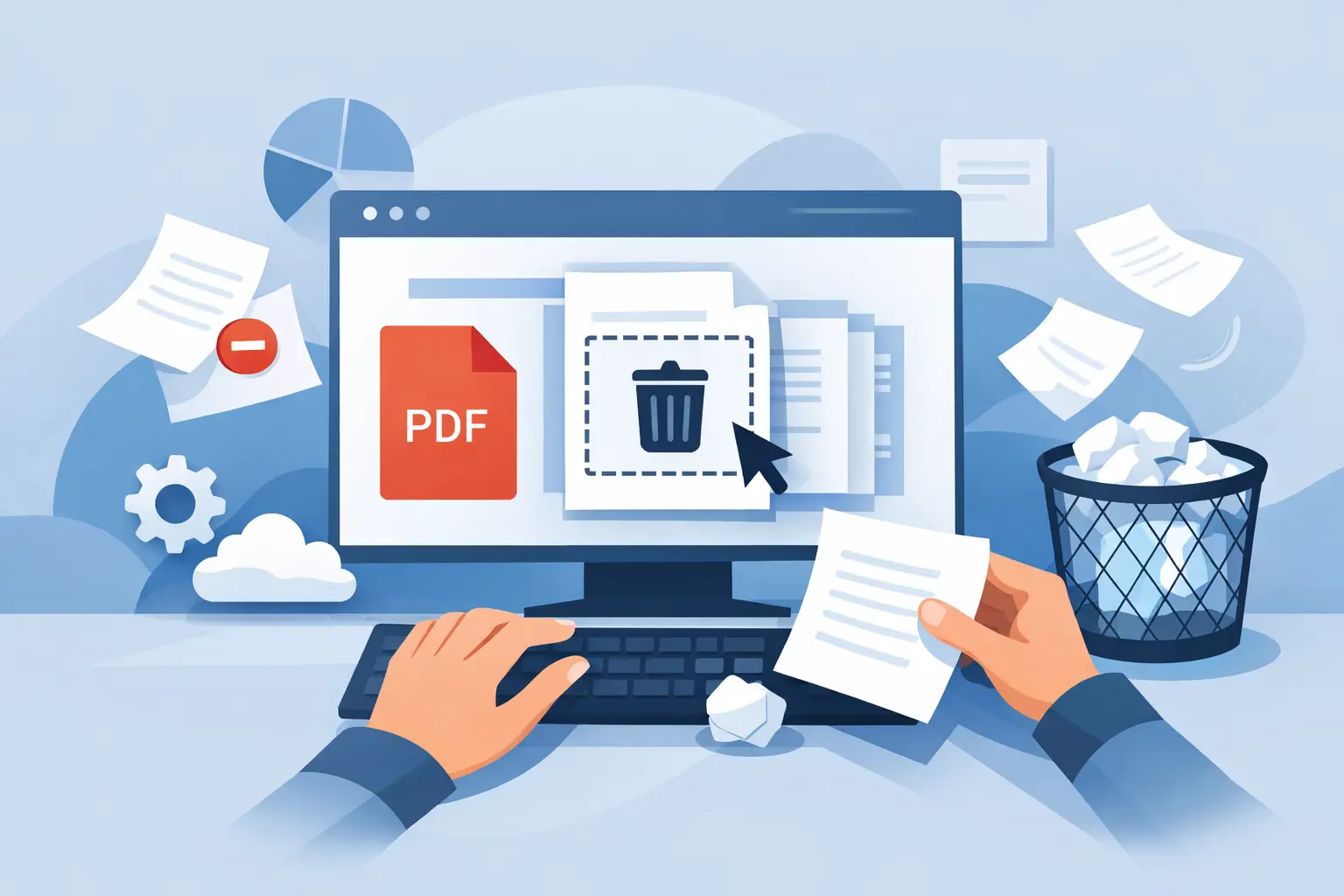
A 42-page contract turns into a problem the moment pages 17 through 20 are outdated. An onboarding packet includes a duplicate I-9. A client PDF has a blank scanned sheet in the middle. When you need to delete pages from PDF files, the goal is not just editing. It is getting the document clean, accurate, and ready to send without wasting time.
That sounds simple, but the right approach depends on what kind of PDF you are working with. A one-off personal file is different from a tax packet, an HR document set, or a report moving through approvals. If the wrong pages come out, you can create confusion, compliance issues, or version-control problems. So the fastest method is the one that helps you remove exactly what you do not need while protecting everything else.
When it makes sense to delete pages from PDF
Most people think of page deletion as basic cleanup. Sometimes it is. You remove a cover page, a blank scan, a duplicate, or an appendix that does not belong in the final version. But in professional workflows, deleting pages is usually about reducing friction.
A smaller, cleaner PDF is easier to review, email, upload, and archive. Finance teams may remove backup pages before sending a file externally. HR staff may strip out instruction sheets before distributing forms to employees. Contractors may delete pages that include irrelevant scope details before forwarding a quote to a subcontractor. In each case, the edit is small, but the payoff is practical.
There is also a security angle. If a PDF contains pages with personal data, internal notes, or outdated information, deleting those pages before sharing the file lowers the risk of exposing material that should stay private. That matters even more when documents include tax forms, onboarding paperwork, or customer records.
How to delete pages from PDF without creating extra work
The fastest workflow is usually browser-based. You open the file, review page thumbnails, remove the pages you do not need, then save the revised version. No software install, no complicated menus, and no handoff between multiple tools. For busy teams and individual users, that speed matters.
Before you delete anything, take ten seconds to confirm which version of the file you are editing. This is where mistakes happen. Someone downloads an updated document, edits the old one by accident, and now there are two nearly identical PDFs in circulation. If the file is business-critical, rename the output clearly so the next person knows it is the cleaned version.
Thumbnail view is the safest way to work. It lets you see the full page sequence instead of relying only on page numbers. That is especially useful when scanned PDFs have inserts, rotated sheets, or pages that look similar at a glance. If a document includes repeated forms like W-9s or invoices, visual confirmation helps you avoid deleting the wrong copy.
Once you remove the pages, do a quick pass through the updated file. Check page order, page count, and formatting. In most cases, deleting pages will not affect the rest of the document, but it is still smart to verify. This is a 30-second habit that can save a reshare, a correction email, or a delayed submission.
The trade-off between speed and control
If you only need to remove one or two obvious pages, almost any PDF editor will get the job done. But when you are handling a longer file, the tool matters more. Some editors are fine for simple tasks but awkward when you need to review many pages quickly. Others make it easier to reorder, rotate, split, or compress the file right after deletion.
That matters because deleting pages is often not the last step. After cleanup, you may also need to merge in a corrected form, rotate scanned pages, compress the file for upload, or add a signature field. Using separate tools for each action slows the process and increases the chance of version mix-ups.
This is where an all-in-one browser workflow is usually more efficient. If you can organize the file, make the edit, and finish the document in one place, you spend less time managing the process and more time finishing the task.
Common mistakes when you delete pages from PDF files
The biggest mistake is deleting pages from a locked or signed document without checking the consequences. Some PDFs contain restrictions, and some digitally signed files may become invalid once edited. If the document is part of a formal workflow, verify whether a fresh signature or approval is required after changes.
Another common problem is assuming deleted pages are the only issue. In scanned PDFs, blank pages often come with sideways pages, poor page order, or oversized file size. If you are already editing the document, it is worth checking whether the PDF also needs rotation, reordering, or compression before you send it out.
There is also the issue of sharing the wrong output file. People often save the edited PDF, then accidentally attach the original. A clean naming convention helps. So does keeping the updated file in the same workflow while the task is still open.
And then there is over-editing. Sometimes users delete pages to make a file shorter, only to realize those pages were required instructions, disclosure text, or supporting records. Shorter is not always better. The right test is whether the document still serves its purpose after the pages are removed.
What to check before sending the revised PDF
If the PDF is going to a client, agency, employee, or vendor, accuracy matters more than speed by the final step. After editing, check that the file opens correctly on your device, the correct pages remain, and nothing essential was removed.
For business documents, confirm whether page numbering inside the content still makes sense. A report that refers to “see page 12” can become confusing if pages were removed from the front. The same goes for attachments or exhibits mentioned elsewhere in the file.
If the document contains sensitive information, make sure the pages you intended to remove are actually gone from the saved output, not just hidden in a view setting. And if you are using an online tool, security standards matter. For professional use, you want encrypted transfer, trusted handling, and auto-deleted files so documents are not sitting around longer than necessary.
Why browser-based editing works well for busy teams
For many users, the real problem is not how to delete pages. It is how to do it fast from whatever device is available. That is why browser-based PDF tools fit so well into modern admin, HR, finance, and contractor workflows. You can clean up a document from a laptop at work, a home desktop, or a mobile device without stopping to install software.
That flexibility is useful when document tasks pile up. Maybe you are sending vendor packets, cleaning payroll backups, preparing a tax form bundle, or removing extra pages from a scanned onboarding set. The more often you do this work, the more valuable it becomes to have PDF editing, organization, forms, and security in one place.
Platforms like PDF Awesome are built for that kind of task flow. Instead of treating page deletion as an isolated edit, they support the full sequence around it - organize the file, make the fix, convert if needed, and move on.
When deleting pages is better than splitting a PDF
Sometimes users are not sure whether they should delete pages from PDF files or split the document into separate files. The answer depends on the end goal.
If you want to keep most of the document and remove a few unnecessary pages, deletion is faster and cleaner. If you need to separate a large packet into multiple standalone documents, splitting is usually the better move. For example, deleting three pages from a 20-page policy file makes sense. Breaking a 100-page scanned batch into ten employee records calls for a split.
There are cases where both actions belong in the same workflow. You might split a large packet into smaller PDFs, then delete cover sheets or blank scans from each one. That is another reason integrated PDF tools save time. Real document work rarely stops at one action.
A cleaner PDF is easier to trust
People notice when a file is messy. Extra pages suggest outdated information, poor controls, or rushed preparation. A PDF that opens cleanly, contains only what is relevant, and is easy to review creates a better impression right away.
That matters whether you are sending a proposal, submitting paperwork, onboarding a new hire, or sharing forms with a client. Deleting the right pages is a small edit, but it improves clarity, reduces risk, and keeps the next step moving.
If a document feels bloated, confusing, or harder to send than it should be, that is usually your cue. Clean it up, keep only what matters, and let the file do its job.
