
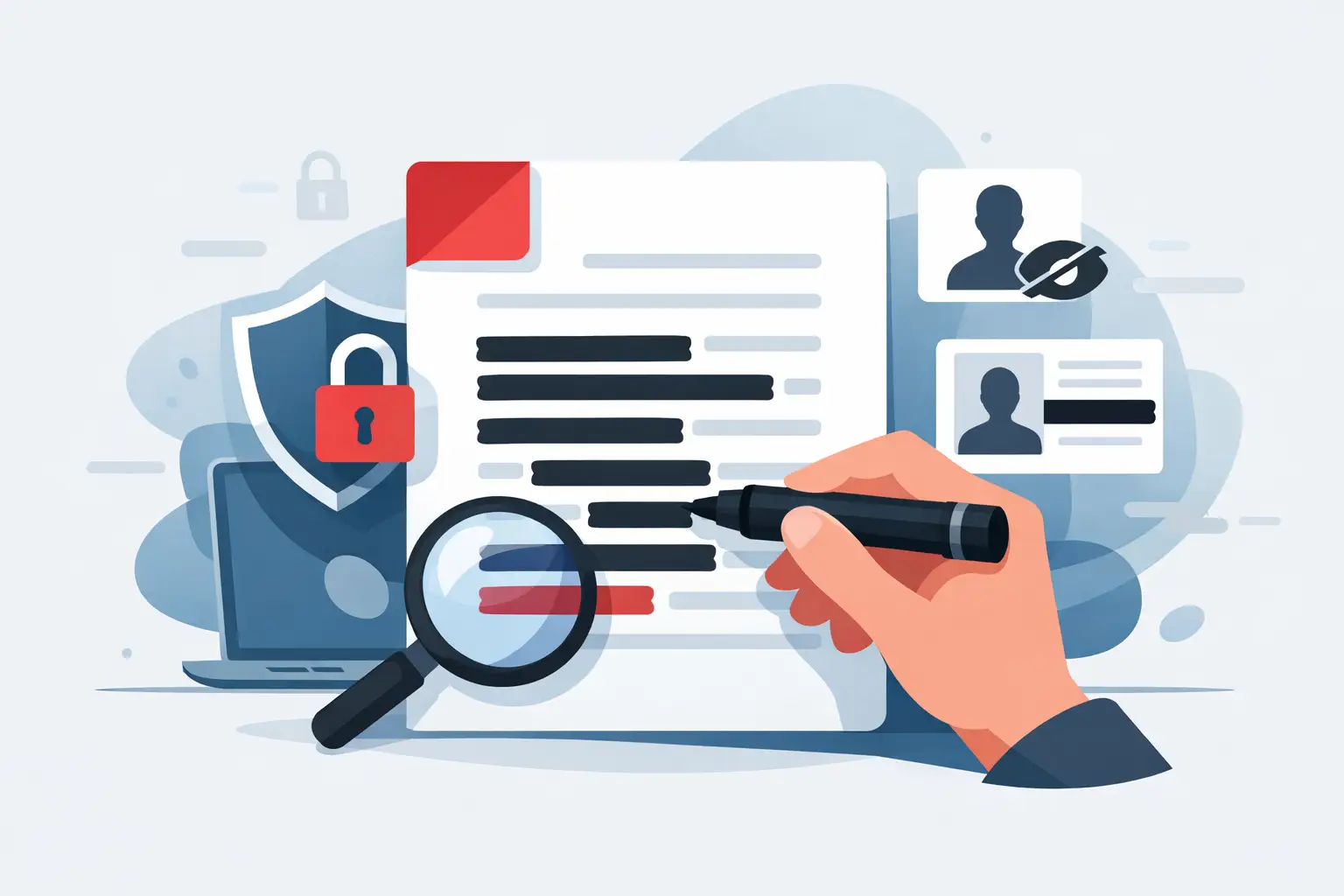
A black box over a Social Security number looks reassuring right up until someone copies the text underneath it. That is the mistake people make when they try to redact sensitive PDF information in a hurry. If you handle contracts, tax forms, onboarding packets, invoices, or customer records, visual cover-up is not enough. Real redaction removes the data so it cannot be searched, copied, or recovered later.
Why redacting sensitive PDF information matters
A PDF often contains more than what appears on the page. It can include selectable text, hidden layers, comments, metadata, form entries, and revision history. If any of that information stays behind, a file that looks clean can still expose names, addresses, account numbers, signatures, or internal notes.
For HR teams, that could mean exposing employee identification details. For finance and operations staff, it could mean sharing banking or tax information with the wrong party. For independent contractors and small businesses, it can be as simple as sending a W-9 or invoice attachment with data that should have been removed before distribution.
The risk is practical, not theoretical. Many disclosure mistakes happen because someone used highlight, white fill, or a shape tool instead of a true redaction function. The document looked fixed. The underlying data was still there.
What real PDF redaction actually does
To redact sensitive PDF information properly, the tool needs to do more than hide content. It should permanently remove the selected text or image area from the document structure, then save the file in a way that prevents recovery through normal viewing or copy-and-paste.
A proper redaction workflow usually includes two stages. First, you mark the content for removal. Then you apply the redaction so the data is deleted from the file. If the tool also sanitizes metadata, comments, and hidden elements, that is even better for documents moving outside your organization.
This matters because PDFs are layered documents. A visible page is only one part of what a recipient can access. If your workflow handles legal agreements, ID documents, tax records, or employee paperwork, the right method is the difference between privacy and exposure.
When you should redact instead of just edit
Editing changes what people see. Redaction removes what people should never access.
If you are sending a contract for review and only want to fix a date, standard editing is fine. If you are sharing that same contract with a vendor and need to remove pricing, internal approver names, or bank details, you need redaction. The same rule applies to W-4s, W-9s, I-9s, medical paperwork, claims documents, and reports that contain personal or financial data.
A good rule is simple: if the information is confidential, regulated, or irrelevant to the recipient, redact it rather than cover it.
How to redact sensitive PDF information safely
Start by identifying exactly what needs to be removed. That includes obvious fields like Social Security numbers, account numbers, home addresses, birth dates, signatures, and email addresses. It also includes less obvious items such as comments, sticky notes, embedded form values, and document properties.
Next, use a tool with a dedicated redaction feature rather than drawing objects over the page. Mark each text block, image, or area you want removed. If the document contains repeated terms like a customer name or employee ID, search-based redaction can save time and reduce missed instances.
Before applying changes, review every mark carefully. Redaction is permanent when done correctly, so this is the moment to catch mistakes. Once confirmed, apply the redaction and save a new file version. Keeping the original in a restricted location is often the safest approach for internal recordkeeping.
After saving, test the file. Try selecting text where the hidden content used to be. Search for keywords that should be gone. Check comments, form fields, and document properties if your workflow allows it. A redacted PDF should not reveal removed data through search, copy, or inspection.
For people who need a fast browser-based workflow, this is where an online platform can help. PDF Awesome is built for quick document tasks without software installation, which is useful when you need to process and share files from any device while keeping speed and security in view.
Common mistakes that leave data exposed
The most common mistake is using a black rectangle, highlight, or white box to hide text. That changes appearance, not access. Anyone who can edit, copy, or inspect the file may still get the original content.
Another issue is forgetting non-visible data. Comments, annotations, form field values, and metadata can all carry sensitive information even after the page looks clean. The same goes for headers, footers, bookmarks, and attachments when they contain personal or internal details.
Version control also causes problems. Teams sometimes redact the final PDF but accidentally send the earlier draft attached to the same email chain or uploaded to the same folder. In high-volume environments like HR, finance, and admin operations, that kind of simple mix-up is more common than most teams want to admit.
Then there is over-redaction. Removing too much can make a file unusable for the recipient. A vendor may need the contract terms but not internal pricing notes. A payroll provider may need tax status but not unrelated HR notes. Good redaction protects privacy without breaking the workflow.
Documents that usually need extra care
Some PDFs deserve a more careful review before they leave your hands. Tax forms are high on the list because they often contain Social Security numbers, EINs, addresses, and signatures. Employment documents such as I-9s, offer letters, and onboarding packets can include date of birth, license details, and emergency contacts.
Financial records are another category where one missed field can create real risk. Invoices, bank letters, purchase records, loan paperwork, and payment authorizations may contain account data or internal approval notes. Legal and compliance files often mix public-facing and confidential content on the same page, which makes precise redaction especially important.
Even simple consumer documents can cause issues. A scanned ID, school record, insurance form, or lease agreement may look straightforward, but one visible identifier can be enough to create a privacy problem.
Choosing the right redaction workflow
The right setup depends on volume, file type, and how your team works. If you only redact occasionally, a browser-based tool with clear redaction controls may be the fastest option. It keeps the process simple and avoids software installation across multiple devices.
If your team handles repeat workflows, consistency matters more than anything. You want a process people can follow every time: identify sensitive fields, mark them, apply redaction, save a clean version, and verify the output. Speed helps, but repeatable accuracy is what keeps problems out of your inbox later.
Security should also be part of the decision. When documents contain personal, tax, or business-sensitive data, look for bank-grade encryption in transit, clear file handling practices, and auto-deletion where available. Convenience is valuable, but not if it creates uncertainty about where the files go or how long they remain stored.
A quick check before you send the file
Before sharing any redacted PDF, take one extra minute. Open the saved version, search for removed terms, try to copy nearby text, and confirm no comments or form data remain. That small check is often the difference between a clean handoff and an avoidable disclosure.
Redaction is one of those document tasks that feels minor until it goes wrong. When you treat it as a real data-removal step instead of a visual edit, you protect your business, your team, and the people whose information is in the file. The best workflow is the one that is fast enough to use every day and careful enough to trust when the stakes are higher.
